Chinese–English Dictation on Mac: Fix Misheard English Words
Diagnose English words misheard inside Chinese speech, separate recognition from cleanup, and test dictionaries, exact replacements and local models.
Ducduc behavior reviewed against the development checkout on October 17, 2026 (0.3.7, build 42). Public v0.3.7 was released October 15 as build 35; later development changes may not be in that download. Check your installed build and available controls. Check the public release
Quick answer
When an English word is wrong inside Chinese dictation, compare the raw transcript with the cleaned text first. Ducduc combines on-device Apple recognition with conservative repair, a Personal Dictionary and scoped exact replacements. These can help, but a fluent sentence is not proof that the recognizer heard the correct word.
For Mandarin sentences with English terms, choose Chinese (with mixed English) in Ducduc’s recognition settings. You do not need to switch languages for each word. If an English term comes out wrong, compare the raw transcript with the final text before adding a correction: the recognizer and cleanup can make different mistakes.
This guide is published by the maker of Ducduc. It explains the implementation and a test you can repeat; the examples below are illustrative inputs, not a recognition benchmark or a promise about your accent.
Set up a useful first test
- Open Settings → Dictation → Recognition language. Select Chinese (with mixed English) for a mainly Mandarin sentence; select English for mainly English speech. These request
zh-CNanden-USrespectively. This is not automatic detection of every language or regional Chinese variety. - Open Notes and place the cursor in an empty note. Dictate one complete sentence with an English term you actually use, then stop. Avoid starting with a long private prompt.
- Open Dictation History and compare the original transcript with the final output. If no text was recognized, use the language-model checklist before changing cleanup.
- Repeat in the app where you normally work. Text in History but no text at the cursor points to delivery, rather than recognition. Use the copy card when offered; terminal input has additional constraints.
For Apple’s own keyboard Dictation, the language controls are under System Settings → Keyboard → Dictation. Those settings and Ducduc’s settings are separate; Apple’s Dictation guide explains the system feature.
Find the first stage that changed the word
| Raw transcript | Final text | Next step |
|---|---|---|
inside where you meant insight | Still inside | Check recognition language, sound quality and recurring vocabulary |
Correct insight | A different term or a Chinese translation | Check cleanup and replacement rules |
| Wrong term | Correct term | Retest in a sentence where the original word really is correct |
| Correct words | Missing “do not” or a scope limit | Treat it as a meaning error; lower cleanup strength and review |
| Text exists | Nothing inserted | Check target focus, permissions and the copy fallback |
These are diagnostic cases, not observed outputs from a recording. A raw transcript records what the recognizer returned; it does not prove what you said. A fluent repair is likewise not proof that it matches the audio.
Preserve language switches instead of translating them
Ducduc’s normal cleanup is instructed to retain embedded English, including ordinary words and whole clauses. For example:
这个方案 makes sense,but we need more data。先别 deploy。
The useful check is whether both English runs and the restriction survive. Turning makes sense into Chinese, translating only part of but we need more data, or deleting “先别” changes the dictated content. A separate translation choice intentionally changes the output language; keep that out of a preservation test.
For unchanged, review the whole instruction: “keep the API unchanged” and “change the API” ask for opposite work. Do not create a global changed → unchanged rule to fix one bad result.
Choose a correction that fits the failure
| Mechanism | What it can help with | What it does not establish |
|---|---|---|
| Personal Dictionary | Candidate spellings for project names, people and technical terms | That Apple’s model was retrained or will always recognize them |
| Learned corrections | Eligible edits you actually make after insertion | That every edit in every input field was observed |
| Exact replacements | A deliberate recurring phrase mapping, globally or per app | That the mapping is right in unrelated sentences |
| On-device English audio verification | Some suspicious, timestamped English words | A second complete transcription or guaranteed repair |
Start with a short list of real vocabulary. Add the desired spelling in Dictionary → New word, then test it in a complete sentence. Apple’s classic recognition API supports contextual phrase hints; that does not establish equivalent vocabulary biasing in every newer engine. Ducduc also supplies known terms to cleanup.
Use Dictionary → Exact replacements only for an unambiguous recurring mapping. Prefer a distinctive phrase and the relevant app scope. A global right → write rule would damage “the right side of the panel.” The dictionary guide covers learning, scope, backup and undo.
The development checkout also checks some suspicious English against two differently padded audio windows. It requires suitable word timing and agreement, and can skip the check when evidence or time is missing. Protected names and high-risk negative changes receive special handling. This is a limited repair path, not a guarantee that any incorrect English word will be caught.
Run a small acceptance test
Use these proposed inputs, plus your own names. Keep the microphone, language, cleanup strength and model unchanged while testing one correction at a time.
| Say this | Inspect this |
|---|---|
| 保留这一段 unchanged,只调整下面的 layout。 | The negative condition and limited scope |
| 这里要看 user insight,不是 inside 的位置。 | Two similar words used correctly in one sentence |
| 这个方案 makes sense,but we need more data。 | The complete language switch |
| 先检查 cache,不要清掉,可能还要用。 | Negation and uncertainty |
| 把评论发给你常联系的同事,并说出其姓名 | Your own recurring name, without publishing it |
Record intended phrase, raw transcript, final text and insertion result. Repeat each a few times, and include a control sentence where the allegedly wrong word is correct. If a rule fixes the first sentence but breaks the control, narrow or remove it. This evaluates your workflow; it is not a population accuracy score.
Will a local model or Traditional output fix it?
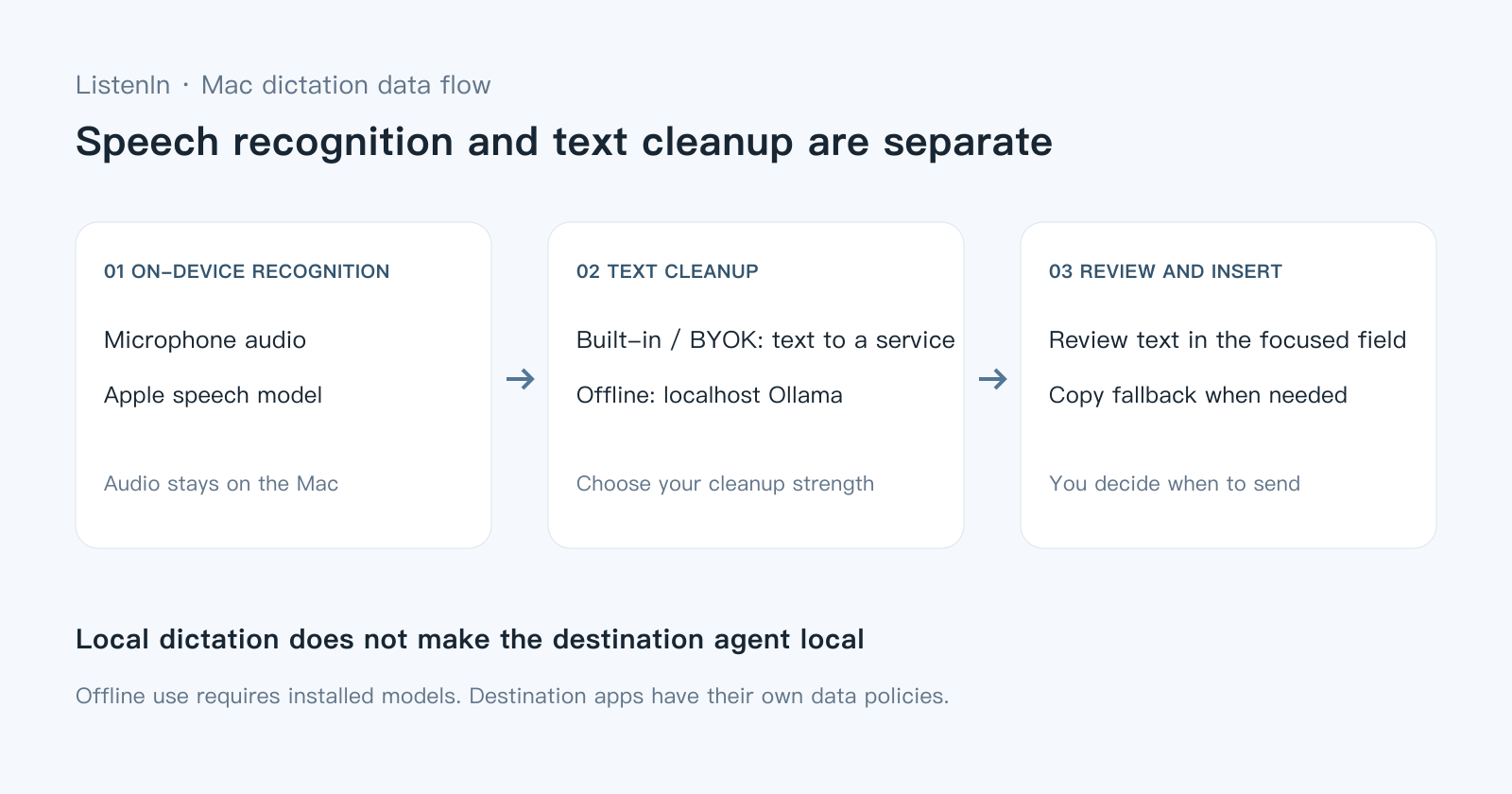
A cleanup model acts on recognized text and cannot guarantee recovery of missing speech. For same-Mac cleanup, use a loopback endpoint, a downloaded local Ollama model and disabled Ollama cloud features, then select Ducduc Offline mode. Offline mode controls Ducduc’s cleanup route; it does not prevent Ollama itself from using cloud services. Follow local setup and rerun the same tests after switching.
Always Traditional changes Chinese characters after recognition; it does not select a Taiwan recognition accent or translate English identifiers. Use the script guide for that separate setting.
Built-in cleanup sends recognized text to Ducduc’s service; BYOK sends text to your configured provider. Recognition uses Apple’s on-device path. Review the data flow before testing private material.
Download Ducduc if you want to try this workflow. Start with one recurring term and compare raw and final text before using it for consequential messages. If it still fails, send feedback with a short redacted raw/final pair, intended term, app, language and build number.
Try it on your own Mac
Try your own vocabulary and editor, then compare the raw transcript and cleaned text in History.
Published by the maker of Ducduc. Third-party information follows the sources and dates stated in this guide. Authorship, sources and examples